
Google Takeout instructions
Google Takeout is a tool developed by Google that lets you export and download copies of various types of data currently stored in your Google account, such as Drive or Mail. You can store the data locally on your computer or upload to your Microsoft cloud account.
Google Takeout does not preserve sharing or permissions on exported files and folders.
Steps to Export Your Data
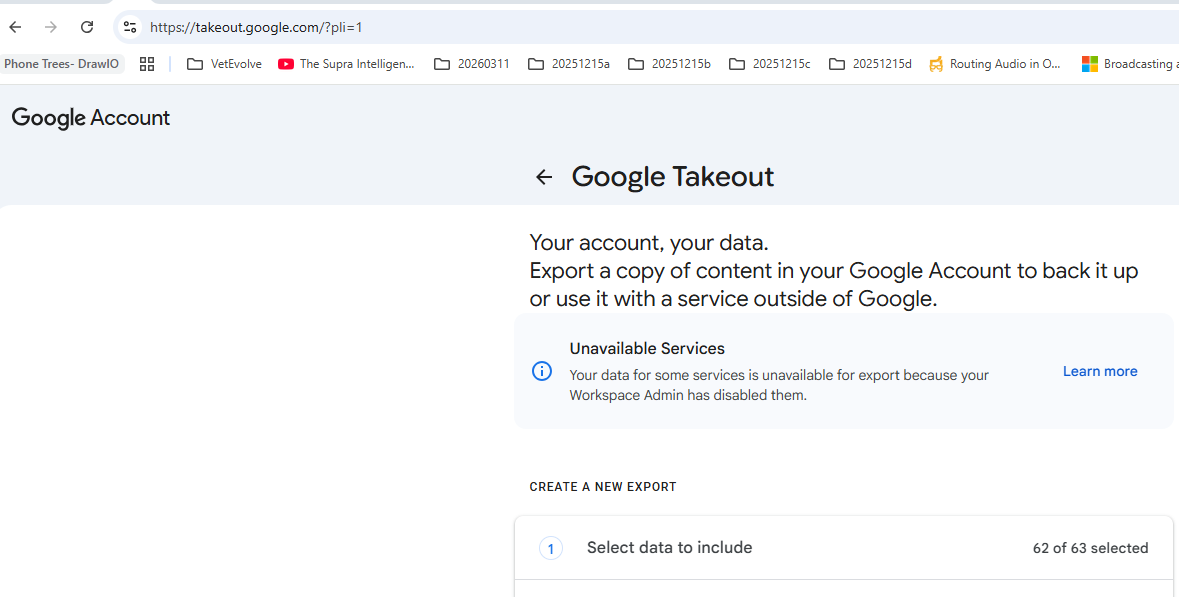
- Sign in: Go to Google Takeout (https://takeout.google.com/) and log in using VetEvolve account.
- Select services (Optional): By default all services except the Access Log Activity. This is usually the correct option unless you are targeting just specific services.
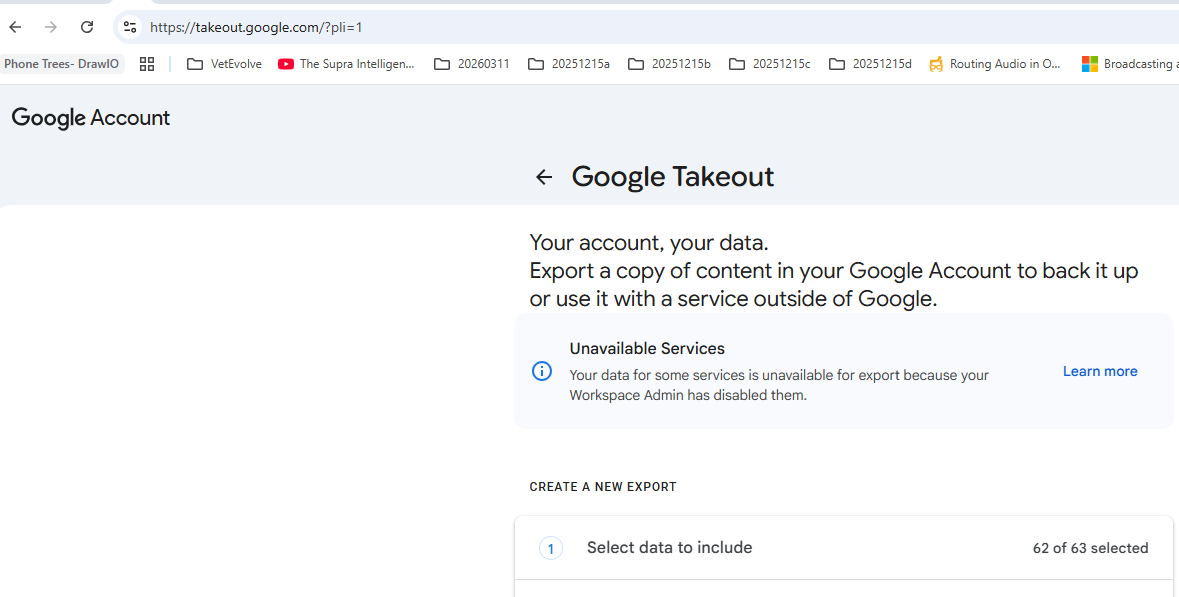
- Choose delivery method: Scroll to the bottom of the page and click Next step.
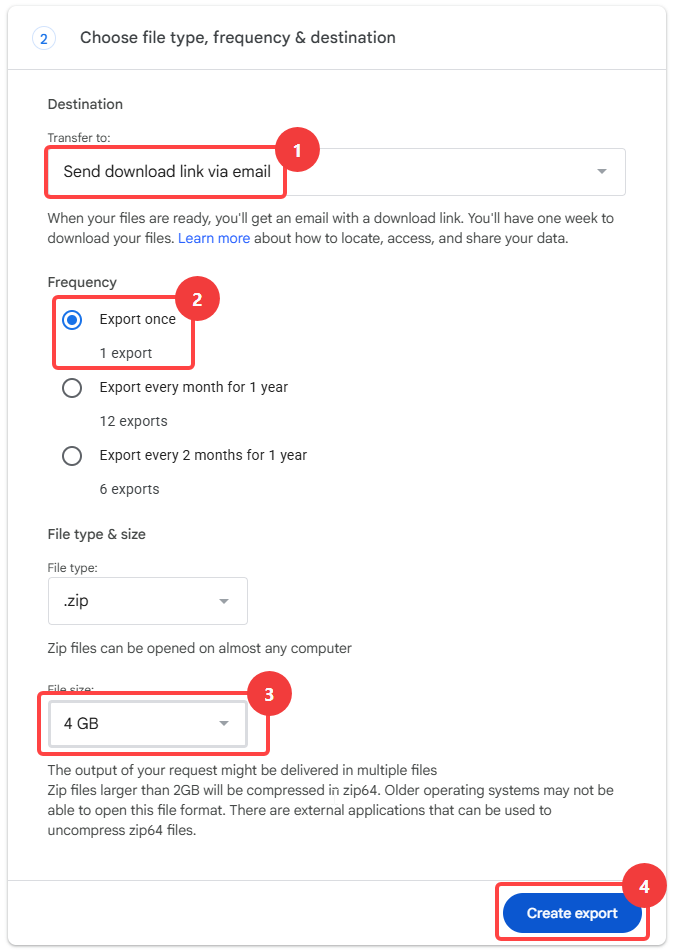
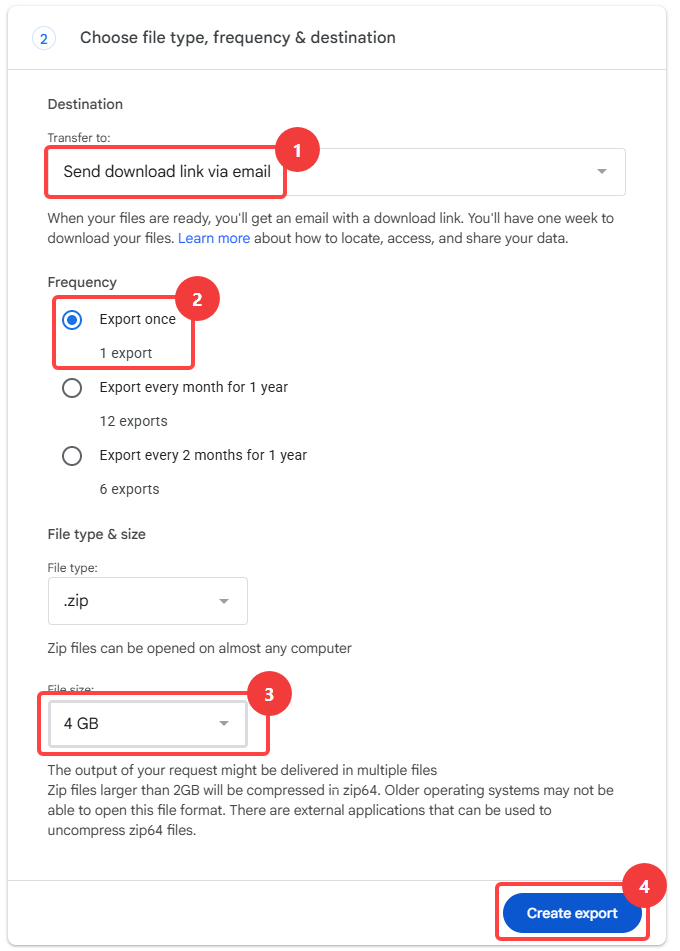
- Leave the destination set to Send download link via email and frequency set to Export once.
- Select file type and size: Leave your preferred file type as .zip and choose a maximum file size of 4GB
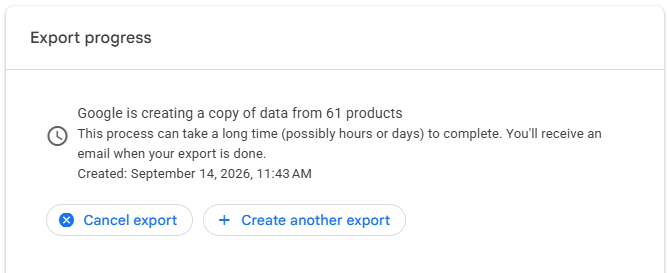
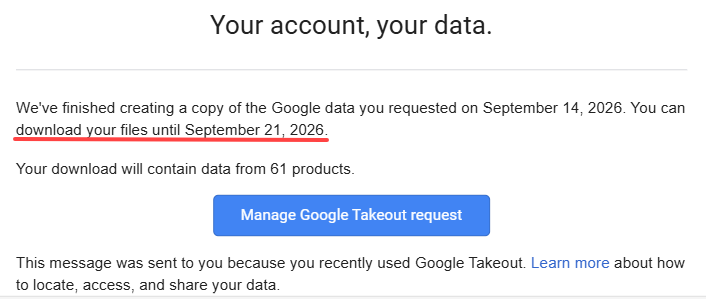
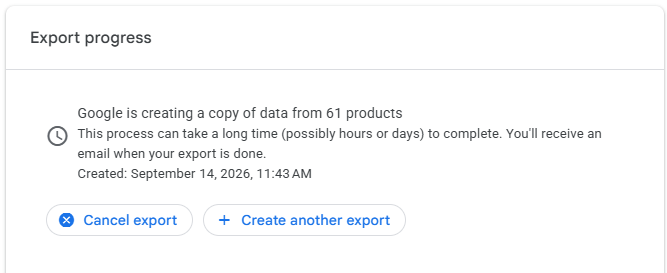
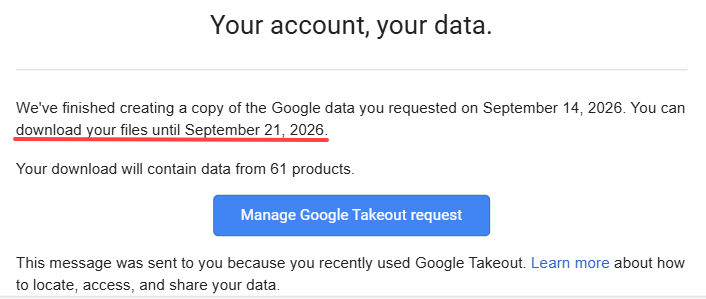
- Download your files: Wait for the confirmation email from Google, open it, and click Manage Google Takeout request
Note there is a 1 week time limit for you to be able to download your data.
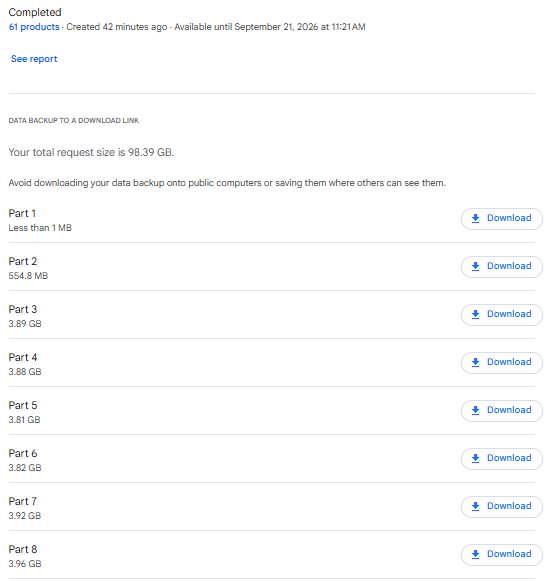
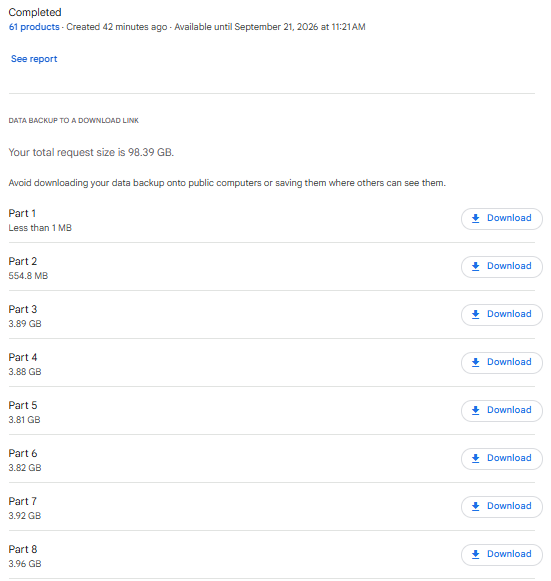
- You will get a list of files to download of various sizes. Download each file to keep as an archive or you can move the copies to other cloud storage outside of Google.
No Comments