
Creating an IT Help Desk Ticket
There are two primary options to create an IT Service Desk Ticket:
The first is just simply to email your request to helpdesk@vetevolve.com
The second option is to use the Jira Service Management portal at https://helpdesk.vetevolve.com.
With either option you will be able to look at the status and details of your requests by logging into the portal.
Logging into the Jira Service Management Portal
Browse to https://helpdesk.vetevolve.com to login to the VetEvolve Jira Service Management Help Desk Portal
On your first login - you will be presented with a screen similar to below:
Enter your email and click Continue (Don't use the connected services at the bottom other than Microsoft).
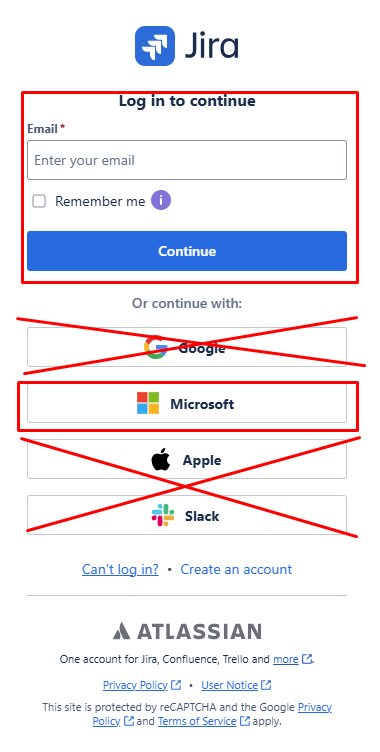
If you are already signed into your Microsoft 365 account, it will connect you straight to the portal home page - otherwise you might be prompted to login to your Microsoft 365 account.
Once logged in - you see see the main portal page similar to the following:
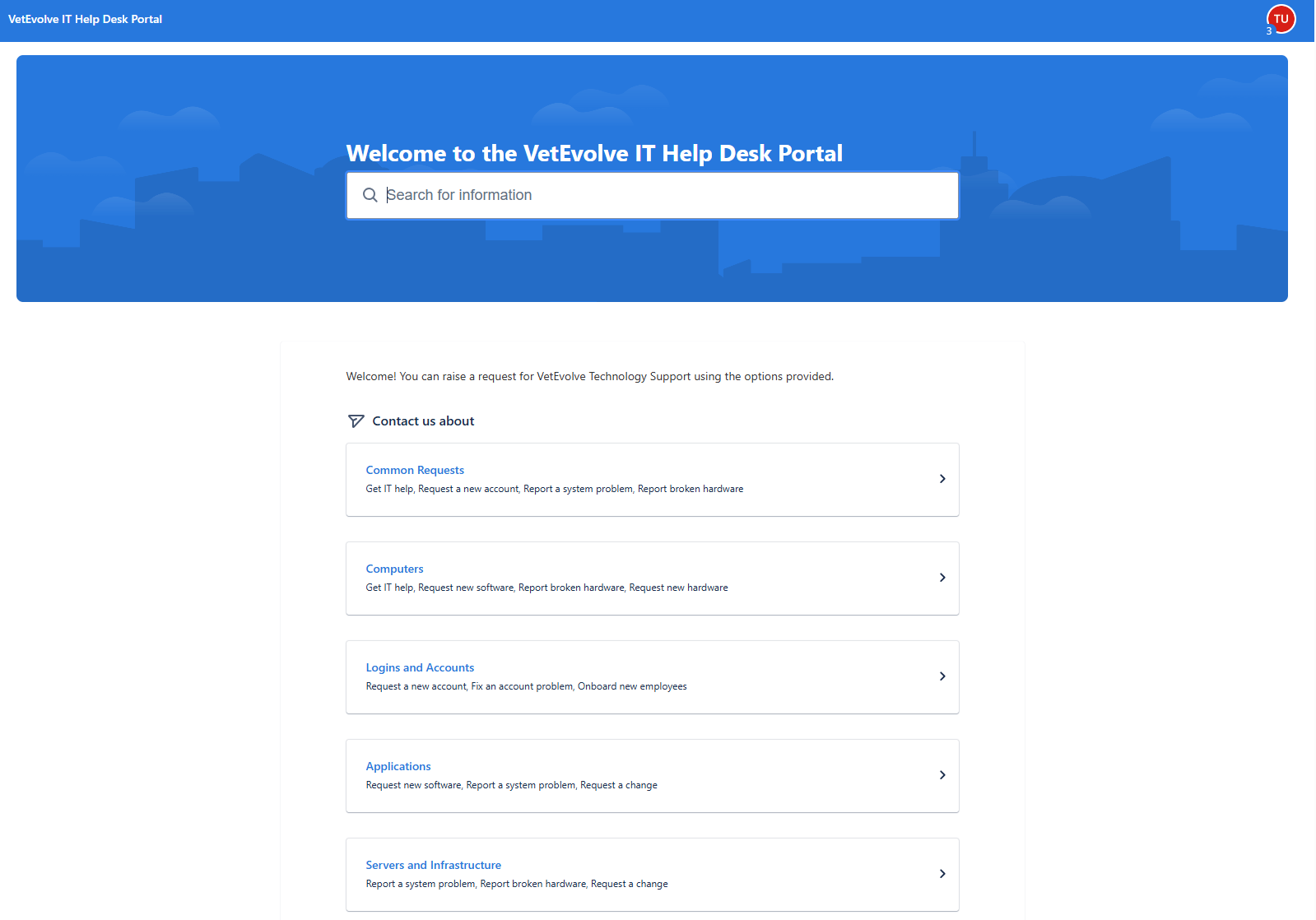
You can select the request type here or choose the Common Requests and choose the generic get Get IT Help option.
Opening a ticket in the Jira Service Management Portal
Once you are logged in to the portal and want to make a request - choose your request type from the list similar to below:
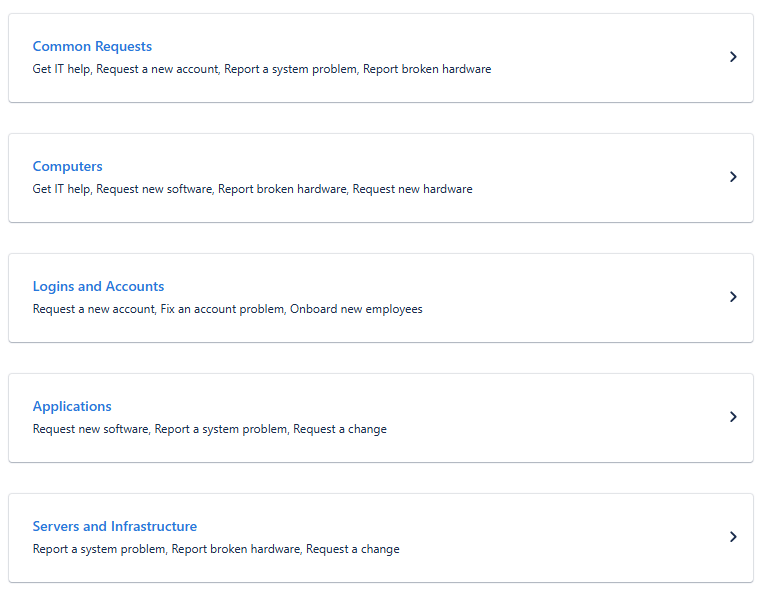
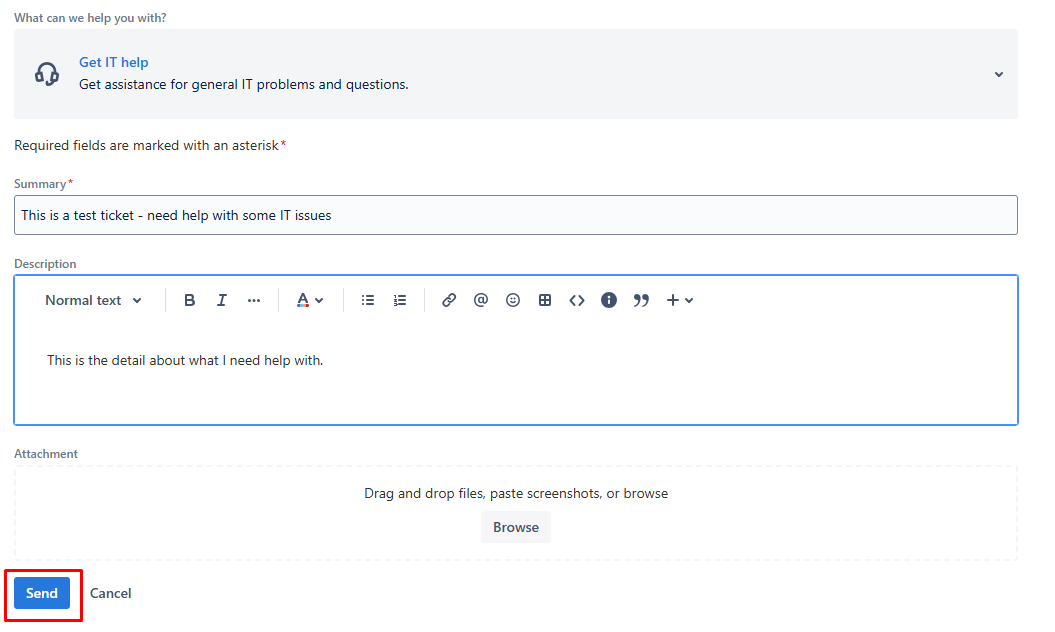
Each request type will walk you through the details need to submit your request. Once the detail are complete and you have attached any relevant screenshots or document, click the send button and your ticket will be created.
Viewing ticket status and editing a ticket
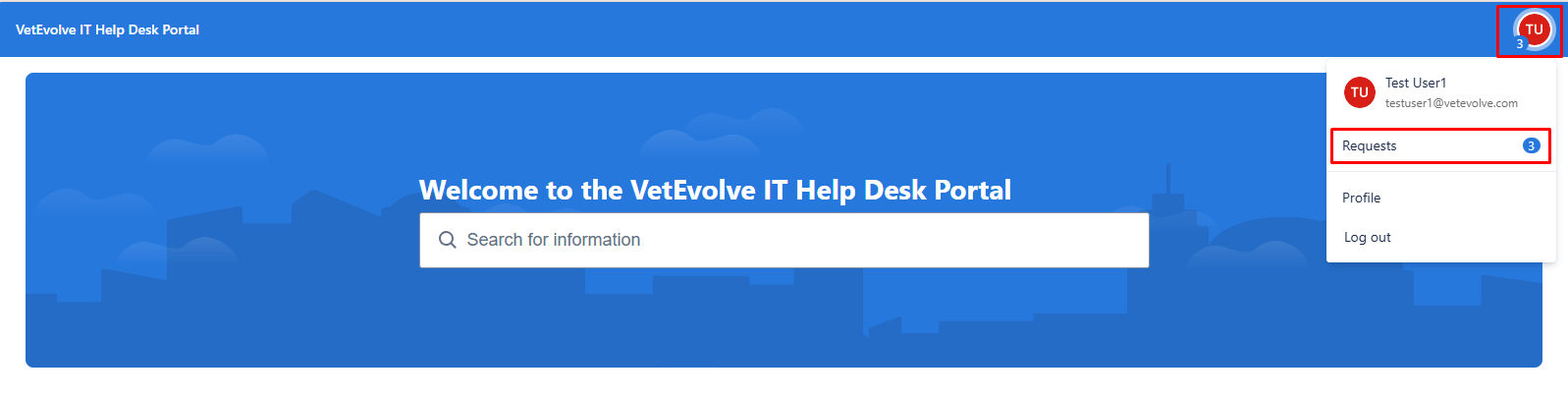
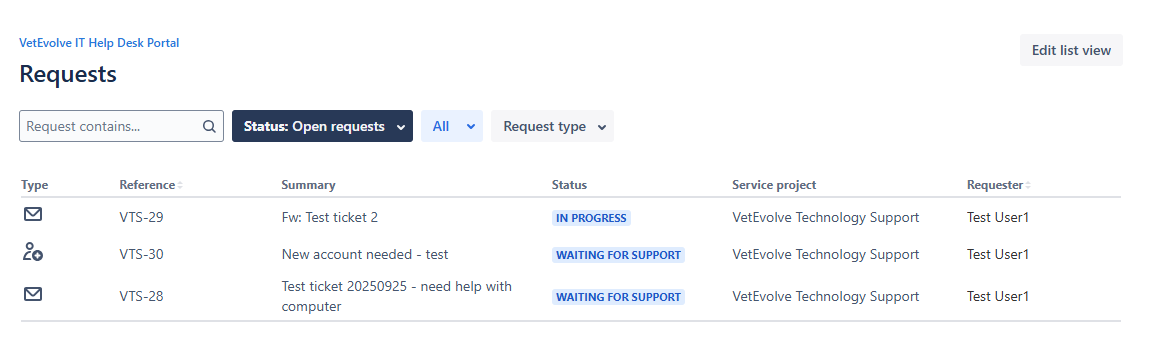
Within the portal you can click on the profile icon in the upper right corner and then click on Requests to see your IT tickets:
Email workflow
If you email your request, you will get an automated response with your ticket number.