
BETA: Using URL Query Parameter Appender for Service Channel SSO redirection
This is a draft article - we are still testing. Please provide feedback to the IT team as we enhance these instructions.
We have implemented Single Sign-On or SSO to help facilitate faster logins and enhance secure access to our Service Channel instance. However, the emails we receive from Service Channel have a URL that points to the general Service Channel page instead of the VetEvolve custom page.
We have found a way to work around this is to use a browser add-in called RedirectorURL Query Parameter Appender that when configured correctly will help redirect to the correct login page for VetEvolve and then continue to the original page you requested once the SSO process is complete.
Note - these instructions are currently only for Windows users using Microsoft Edge or Google Chrome browsers. We may have a different solution for Safari on Mac OS devices if needed - but will likely point to a separate set of instructions. The add-ins for Edge and Chrome should work on a Mac device as long as either one of those is set as the default browser.
Below are the steps to implement the RedirectorURL Query Parameter Appender add-in.
- First - determine what your default browser tied to your email app is. The easiest way to do this is to click on a link within your email. Whichever browser opens the link is your default browser.
- For Microsoft Edge:
Browse to the Redirector Addons page here:RedirectorURL-QueryMicrosoftParameterEdgeAppenderAddons(Edge)
For Google Chrome:
Browse to theRedirectorURL Query Parameter Appender extension in the Chrome Store using this link:RedirectorURL Query Parameter Appender (extenhub) Chrome StoreChrome)There are several add-ins called Redirector in both stores. Use the ones via the links above and make sure the logo looks like the R drawn with an arrow like below
- Add the extension/add-in to your browser.
- Once the add-in/extension is installed, you will need to configure the
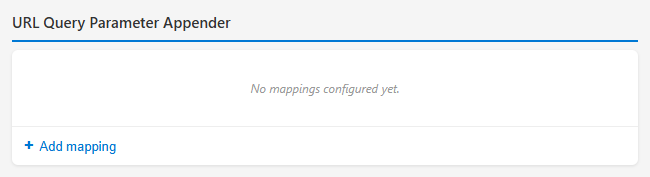
redirects.mappings. Open the extension settings and you should see the default screen similar to this:
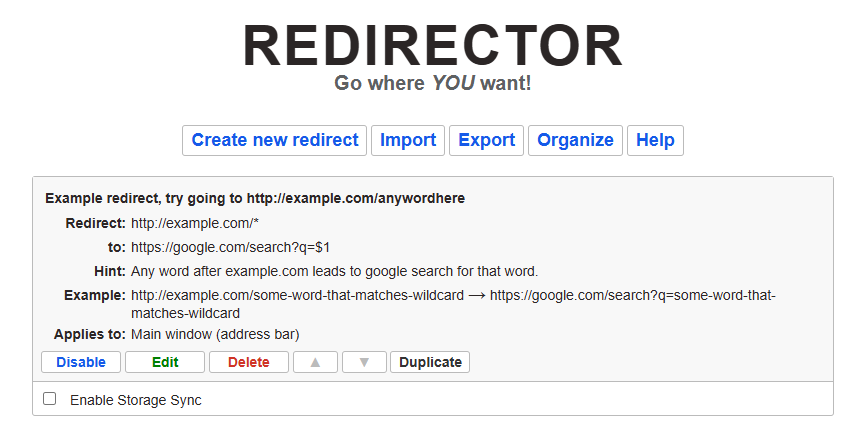
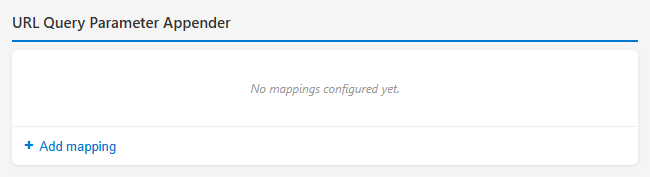
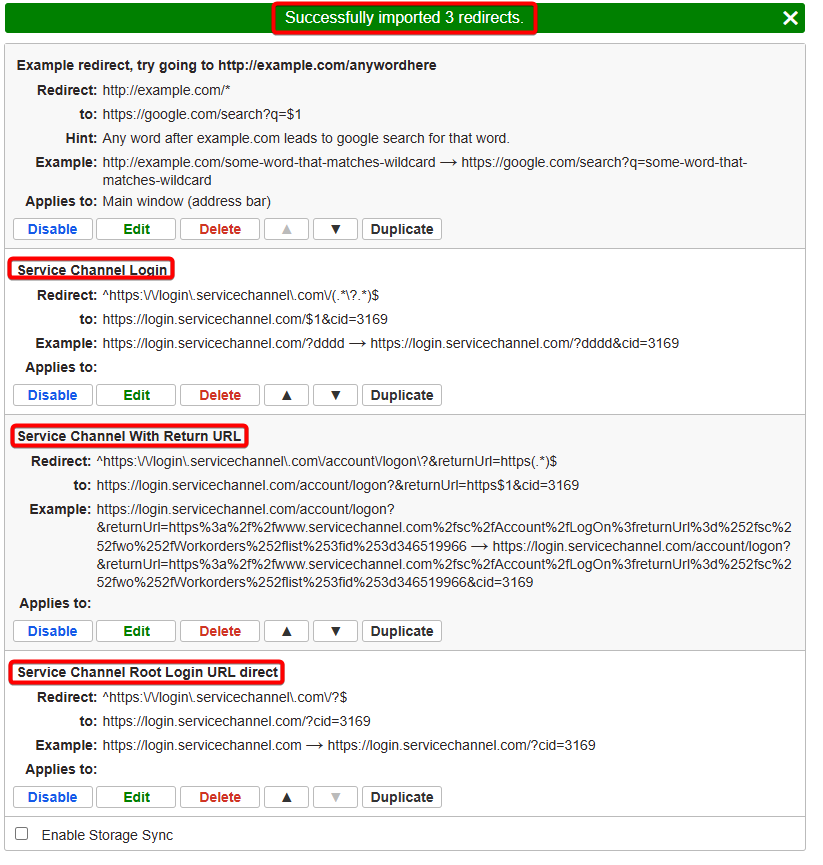
You don't have to create any new redirects - you can just importClick thethreeAddwemappinghave to help facilitate the redirect to Service Channel.Download this file:VetEvolveServiceChannelRedirector.jsonThen within the Redirector interface - click the Import buttonlink andthen browse to theIf successful you should seepopulate the following:
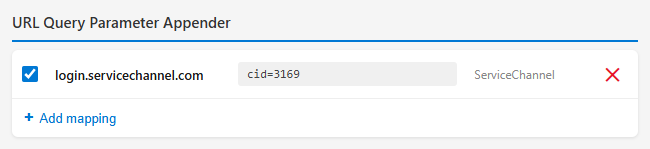
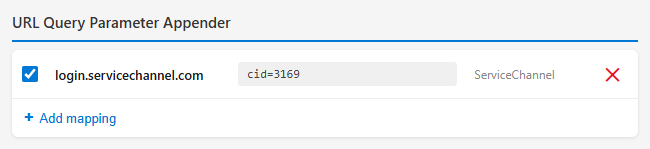
Once done click the check mark to set and it should look like this:Hostname KeyValue Comment login.servicechannel.com cid=3169 ServiceChannel
Now
asyou can open an email from ServiceChannel and test the links for Accept, Decline, View Work Order and Follow Work Order.
As long as thisredirectorURL Query Parameter Appender add-in is active, Service Channel links should redirect you to the SSO page if you aren't already signed in to Service Channel.

TEMP:
Test URLS:
Accept:
Decline:
View Work Order:
View Work Order
Follow Work Order: