
Invitation and Sign-in to Splashtop
If you need access to a practice computer remotely, we will invite you via email to use Splashtop.
You will receive an email similar to below:
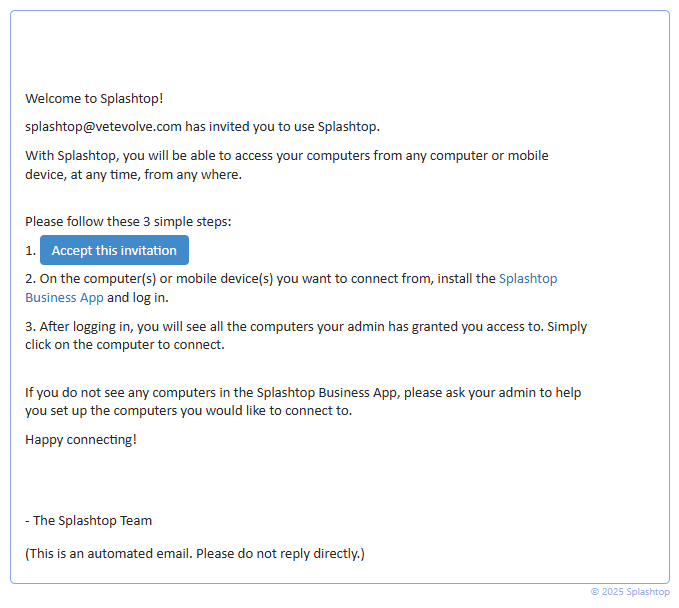
You must accept the invitation by clicking on the link within the email.
When you accept, it should redirect you to the SSO login
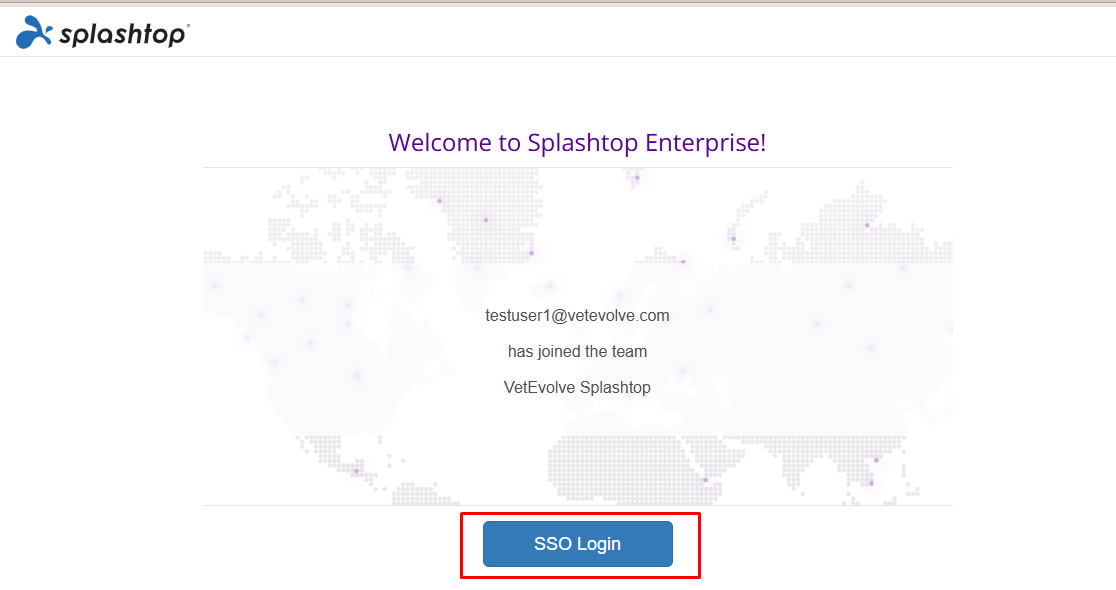
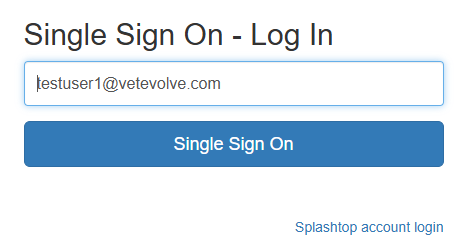
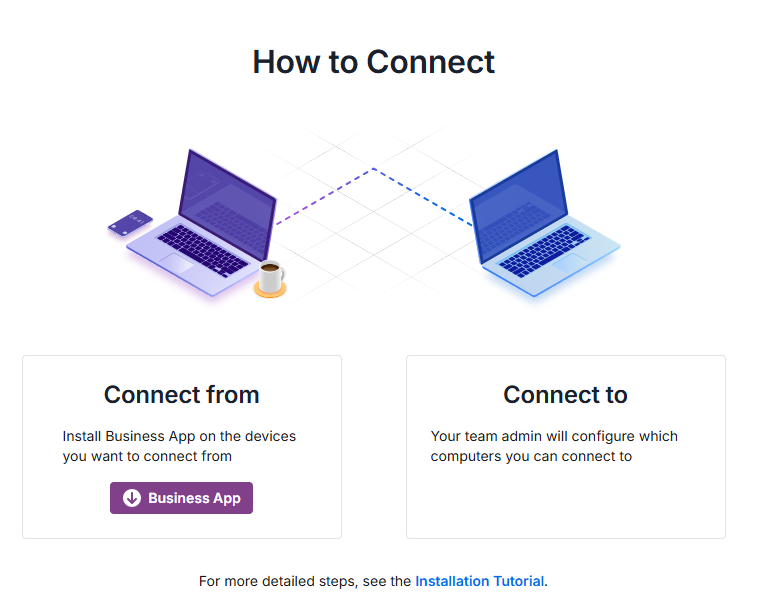
If you are already logged into your Microsoft account, it will login you in and connect you to the Splashtop landing page:
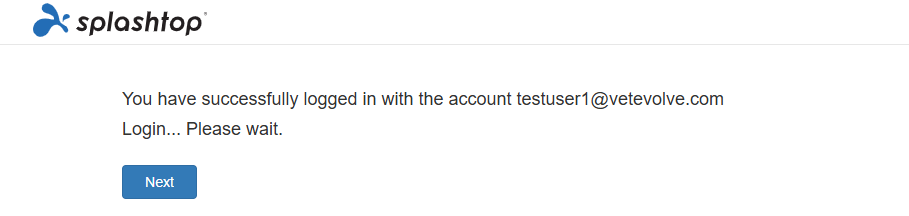
You have two options to connect to computers you have access to - through the web interface or through the Splashtop Business App.
If you see thescreen below, you don't have any computers enabled for remote access on your account yet.
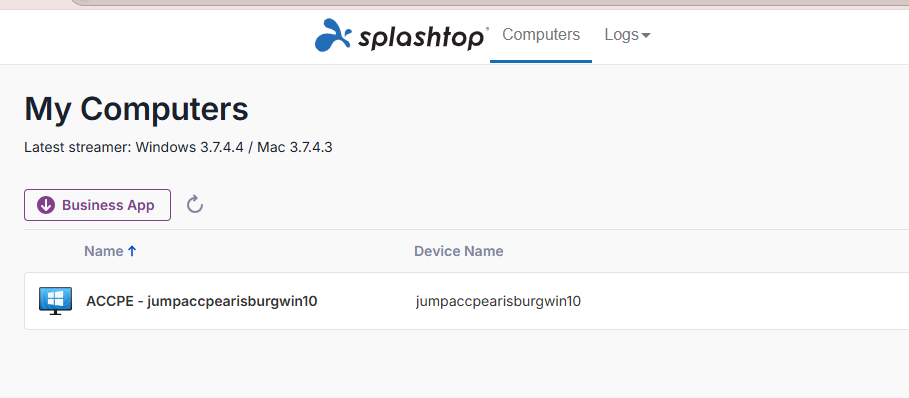
Once we enable computers, you will see one or more in the list:
See the following pages to learn more about connecting to these computers: