Connecting via Splashtop Using the web interface
You can login to Splashtop on any web browser by going to Splashtop - Fast, Secure Remote Access (https://my.splashtop.com/login/sso).
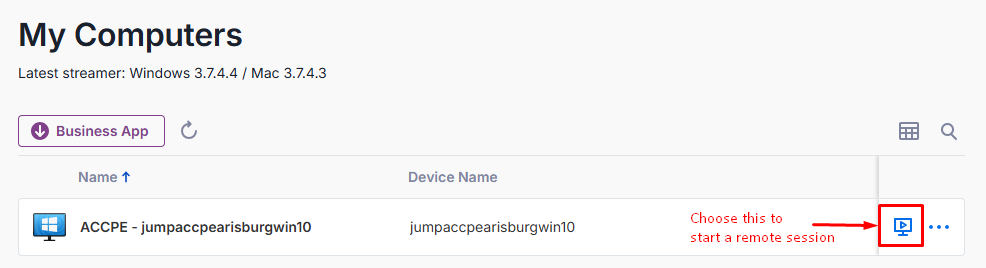
Once signed in you should see a list of computers you can access and some icons to the right. The ellipsis icon gives you a menu to do a few housekeeping items like reboot the computer or look at the properties. The "start session" icon in the one you will want to primarily use.
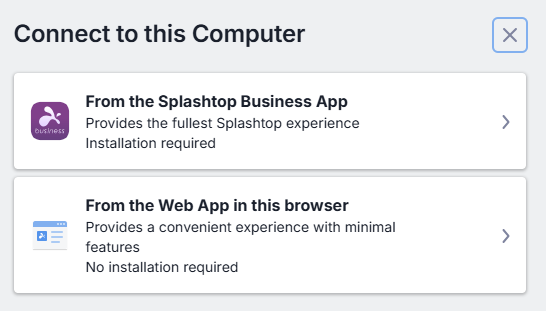
In the web interface, you can chose the "From the Web App in this browser" option to quickly connect with the minimal features.
Using the Splashtop Business App is more feature rich and generally has better performance, but requires you to be able to install the app on the computer you are working from. You can find more about how to use the Business App here.
If you chosoe the Web App, it will open a session in another tab similar to how DWService works. If you are prompted to allow clipboard access, generally you will want to click Allow:
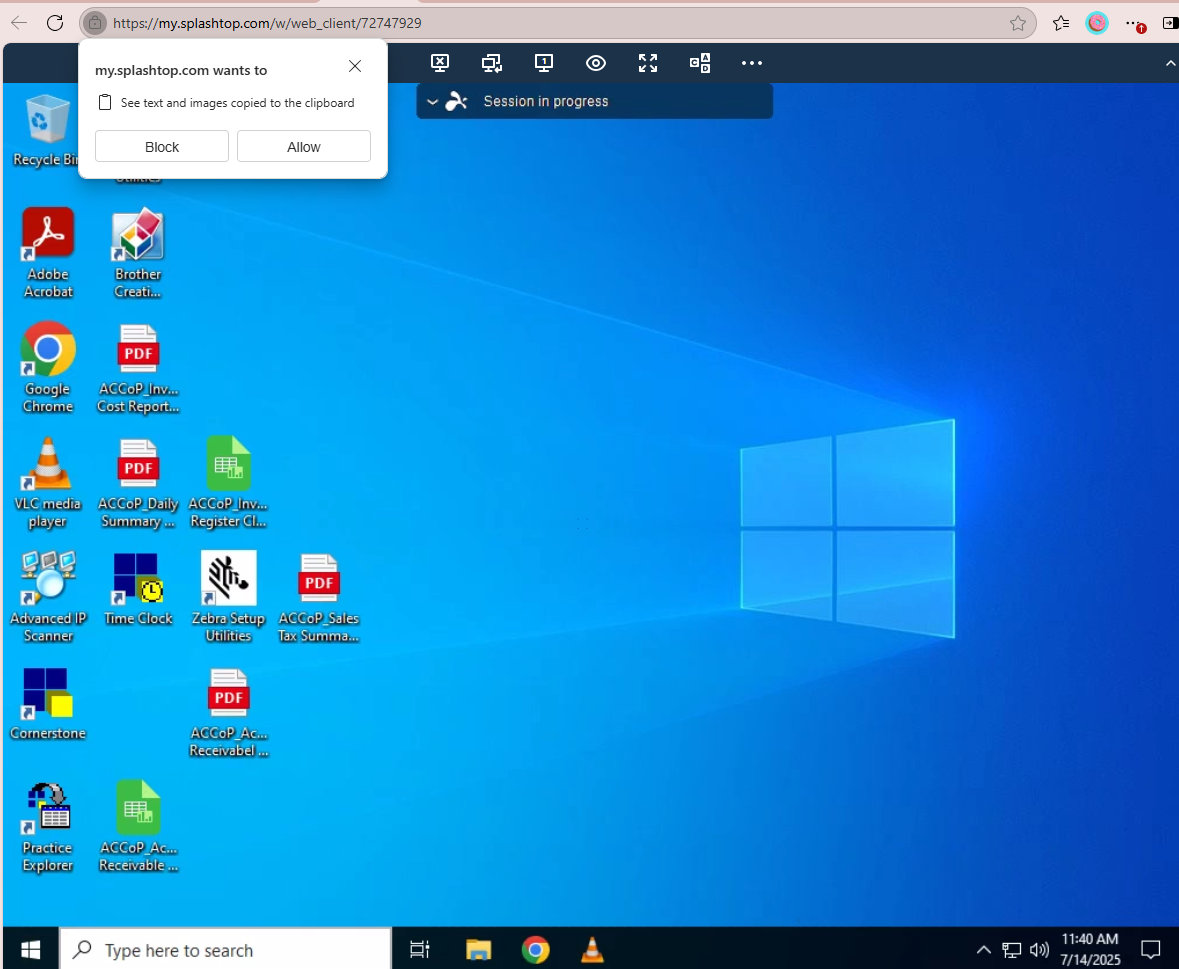
Once you are connected you can control the remote desktop just as you would a local computer.
There are icons at the top to that are mostly self-explanatory - but it is important to know how to send the Ctrl-Alt-Del sequence if the
screen is locked:
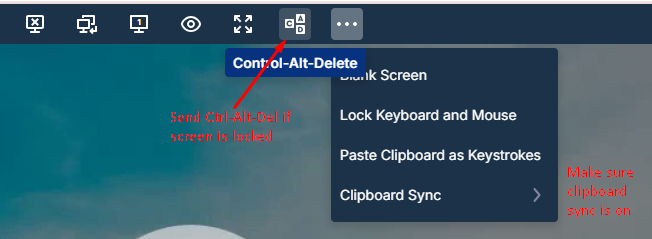
Additionally, the "eye" icon allows you to adjust the view by zooming in or out and adjusting the frame rate which can have a big impact on performance.
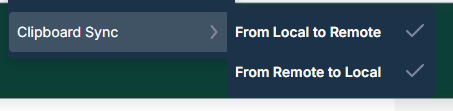
You can copy and paste between sessions as long as the clipboard sync is turned on
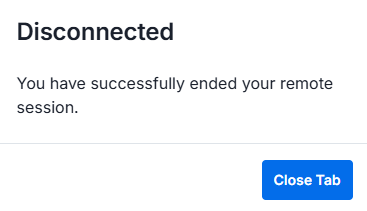
Once you are done with your session you can close the browser tab or click the Disconnect icon