Turn Focused Inbox on or off in new Outlook
Outlook defaults to using a Focused Inbox that separates your inbox into two tabs—Focused and Other. Your most important email messages are on the Focused tab while the rest remain easily accessible—but out of the way—on the Other tab.
To create an inbox that "feels right" to you, the system takes into account emails and contacts with whom you interact, and filters out noisy sources like automatically generated or bulk email. The more you use it, the better it gets.
However, sometimes this will make it easy to miss emails that you would prefer to have in your Focused Inbox.
There are two options to deal with this. You can fully turn off your Focused Inbox or you can selectively choose senders to automatically be put into your Focused Inbox. Instructions for both options are below:
To turn the Focused Inbox off in the new or web version of Outlook:
1. Open Outlook
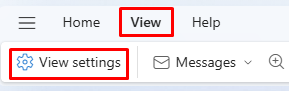
2. Select View > View Settings
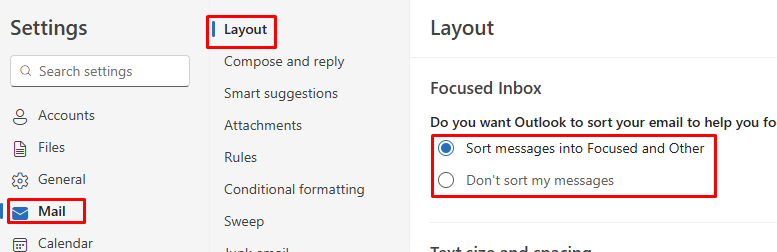
- To turn it on - Select the option Sort messages into Focused and Other.
- To turn it off - Select the option Don't sort my message