
Installing the Teams app
It is possible to use Teams via a web browser - but the experience is usually better using the Microsoft Teams app.
You can download the app on any computer.
Option 1: Download the Teams app from a direct link
Download the install file direct from this link: Download Microsoft Teams Desktop and Mobile Apps | Microsoft Teams
Option 2: Sign-in to Teams on a web browser and download using the built-in links
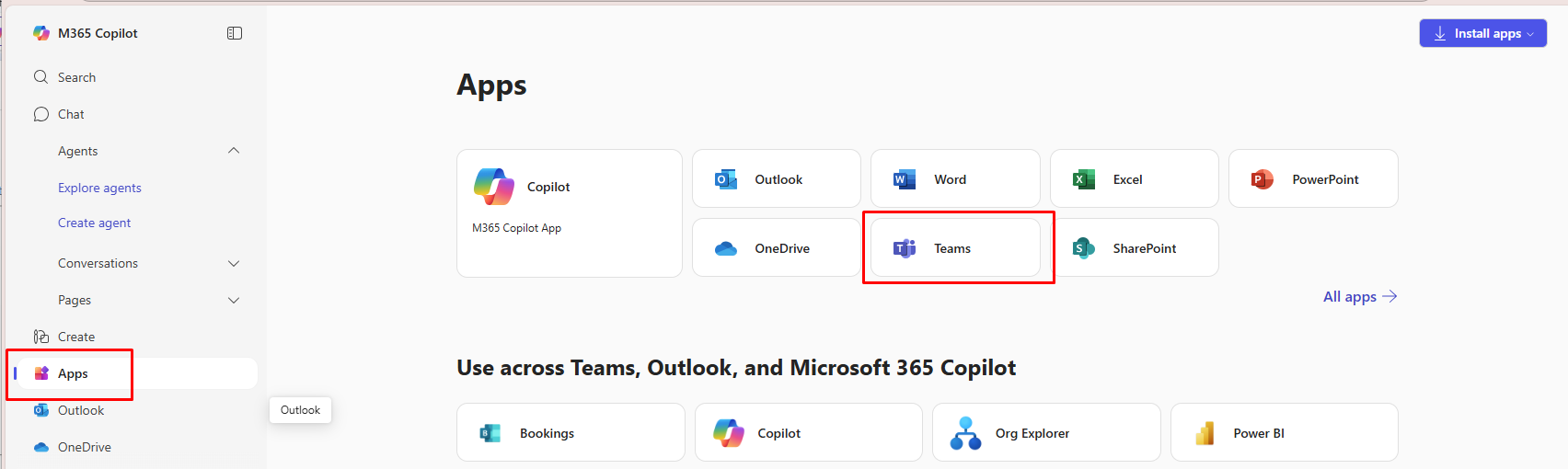
BrowseIf you are already logged in as the M365 account you want to use you either click Apps and then Teams on Copilot home page:
Or if you are in Outlook or another M365 app, you can click the "waffle" menu in the upper right and then choose Teams:

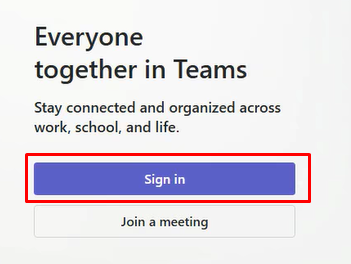
Alternatively, you can browse to https://teams.microsoft.com and sign-in with you Microsoft 365 account.
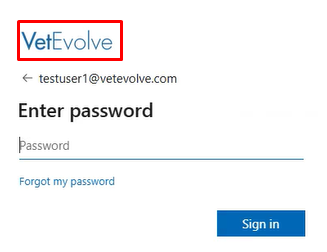
Make sure you see the VetEvolve logo to verify you are signing into the correct account
Once you are in the Teams interface you should see a message about downloading the app.

In case you don't see this message or it has already been dismissed - you can click the ellipsis in the upper right corner by your user icon and select Get the desktop app

Once the app is downloaded - open the file and it will download and install the Teams app.

Once installed the Teams app will open and prompt you to sign-in. It may used cached credential or it may require you to put in your password and multifactor authentication again.

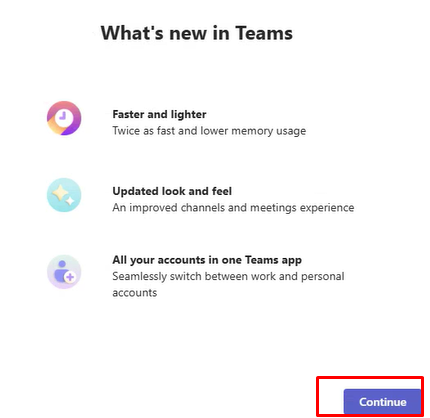
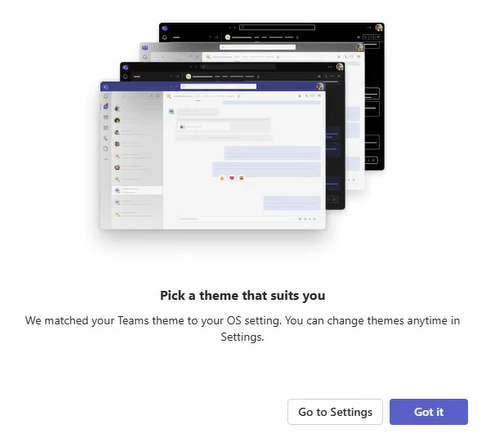
Acknowledge the What's New message and adjust your theme if desired and then you can start using Teams.
Additional information can be found here on how to use Teams:
https://support.microsoft.com/en-us/office/microsoft-teams-video-training-4f108e54-240b-4351-8084-b1089f0d21d7