
Creating a file request on Sharepoint or OneDrive
You can stop requesting files by deleting the file request link once you are done receiving files from others. Once you've deleted the link, people with the link won't be able to upload files to that folder anymore.
Anyone with the link will be able to upload files to the request. However, they aren't able to see or edit other contents in the folder or see who else is able to upload files.
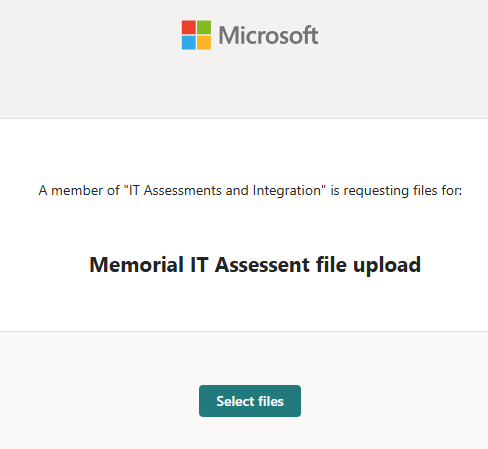
When recipients select the link, they'll see:
With the file request feature in OneDrive or SharePoint, you can choose a folder where others can upload files using a link that you send them. People you request files from can only upload files; they can't see the content of the folder, edit, delete, or download files, or even see who else has uploaded files.
With a file request:
-
Anyone with the file request link can send you a file; they don't need to have OneDrive.
-
All the files sent to you are saved in a single folder that you choose.
-
Every file will have a prefix to help you identify who uploaded it.
-
If two files with the same name are uploaded, OneDrive will automatically add a number to the name of the second file.
-
People who respond to your request can only upload files. They can't view or edit the contents of your OneDrive.
Note: The file request feature is automatically turned on for you OneDrive, but has to be turned on explicitly for each SharePoint site. If you don't see it on your SharePoint site as an option, please submit a request to helpdesk@vetevolve.com to get it turned on.
Requesting Files
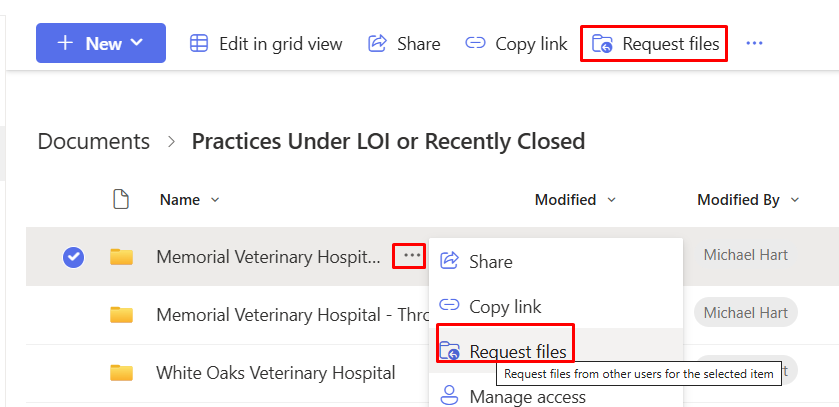
In SharePoint or OneDrive, select the folder where you want the files to be uploaded, then select the Request files option in the toolbar or using the ellipsis menu to the right of the folder.
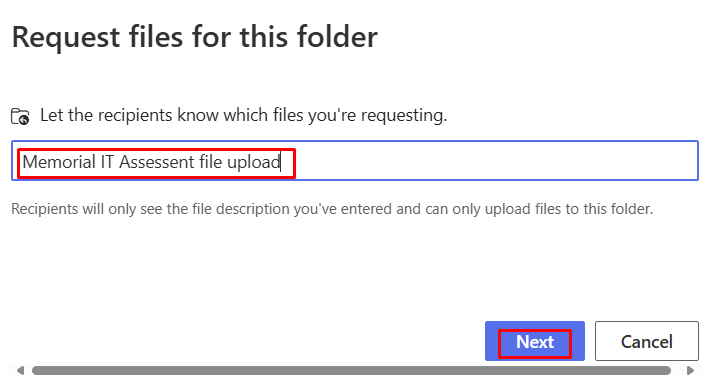
Type a descriptive title to let the recipient of the file request. They will see this description when they get the file request.
Then select Next.
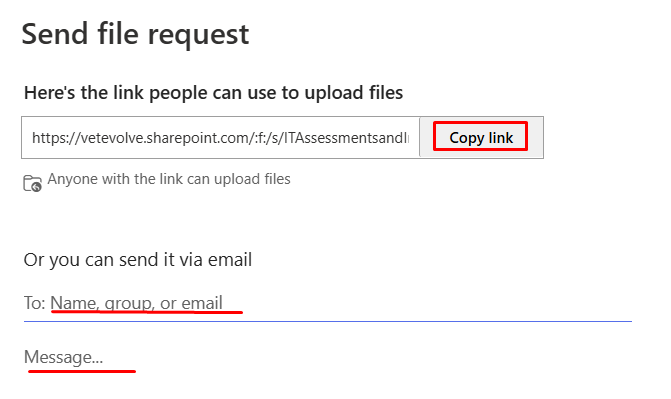
You can select Copy link to copy the request link and send it to anyone you would like to request files from, or you can enter the email address or addresses of the people you want to request files from. You can also type a message that will be included in the email that OneDrive sends to them.
Select Done.
You'll receive a notification email whenever someone uploads files to your file request folder.
If you want to edit the descriptive name of the file request, select the folder and select Request files again, then change the name. The people you sent the request to will see the new name when they upload files.
Getting a file request and uploading files
Anyone with the link will be able to upload files to the request. However, they aren't able to see or edit other contents in the folder or see who else is able to upload files.
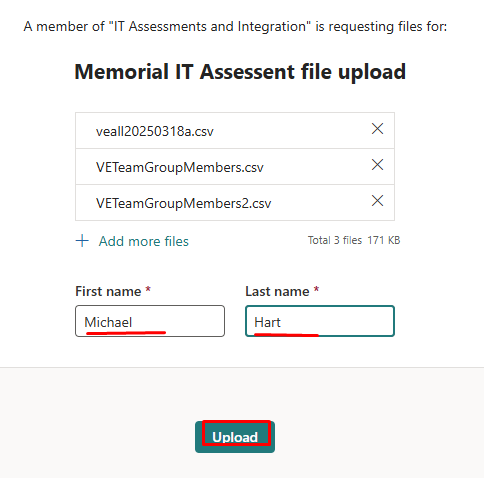
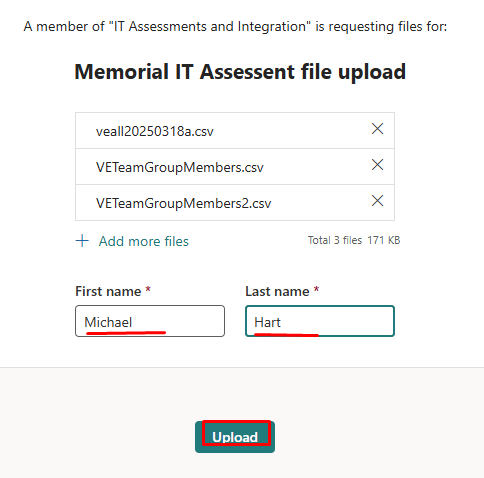
When recipients select the link, they'll see something similar to:
NOTES:
If the recipient is not signed in, the recipient will be asked to add a first name and last name to help the requestor identify the different files uploaded. The provided first name and last name is not validated; it is purely for the requestor's convenience, and is not a guarantee of identity when the recipient is currently not signed in.
If the recipient is signed in and responds to the request, the identity is recorded as part of the upload.
-
Click Select files, browse to the appropriate folder, and select the file being requested. If you need to add additional files, select Add more files.
-
When you've selected all the requested files, select Upload.
-
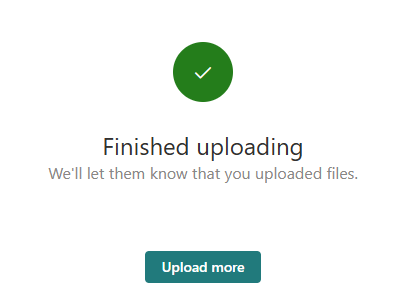
Recipients will get another notification once their files have been successfully uploaded.
Stop requesting files
You can stop requesting files by deleting the file request link once you are done receiving files from others. Once you've deleted the link, people with the link won't be able to upload files to that folder anymore.
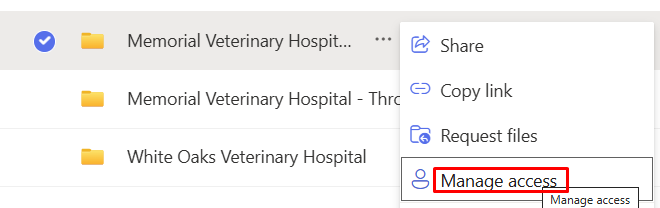
In SharePoint or OneDrive, select the folder and the select the ellipsis to the right.
Select Manage Access
Click the Links menu and find the link that allows upload only. Then click on the trashcan icon to delete the link
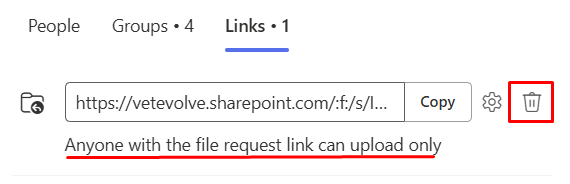
The link deletion can't be undone. If you need to start collecting files in this folder again, create a new file request on the folder and send your recipients a new link or email invitation.