
Creating an Adobe Document for E-Signature from a Word document
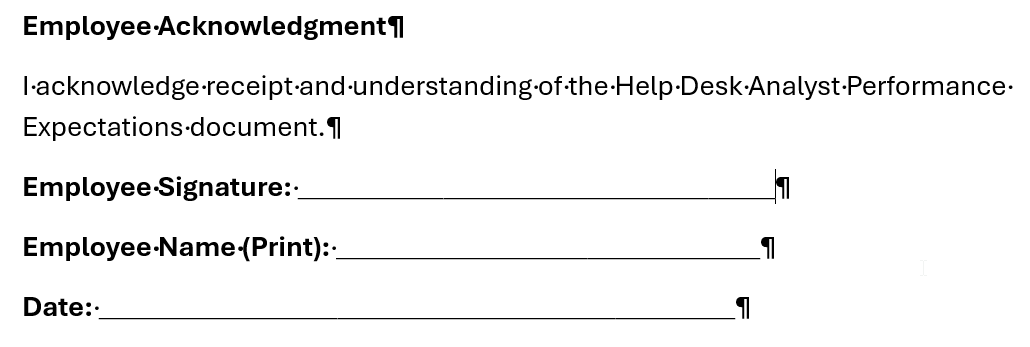
- Create document in Word with fields/blank spaces for signature, date, etc.
-
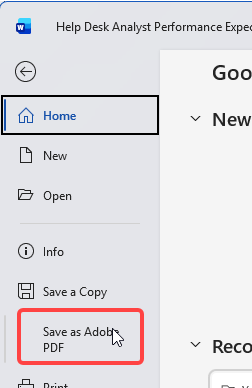
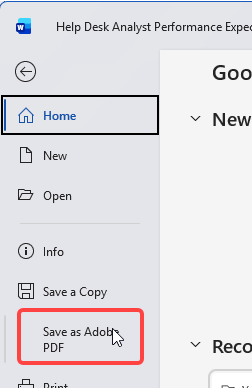
Either save as PDF within Word or you can open the Word document in PDF and it will automatically be converted.
-
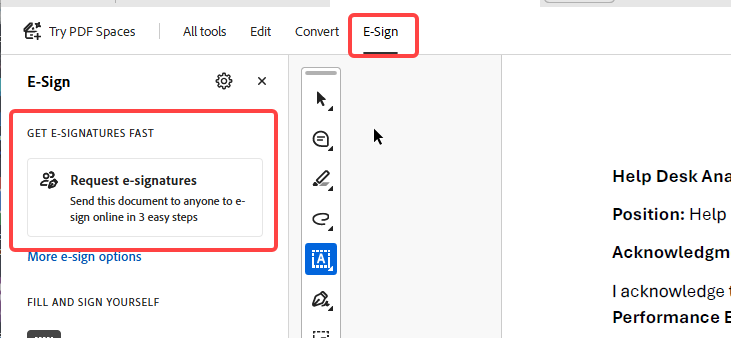
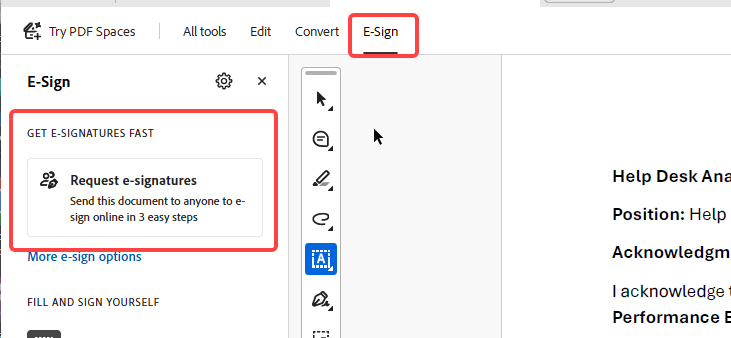
When you are ready to send the document to the requested signees - click on the E-Sign menu and then click Request e-signature
-
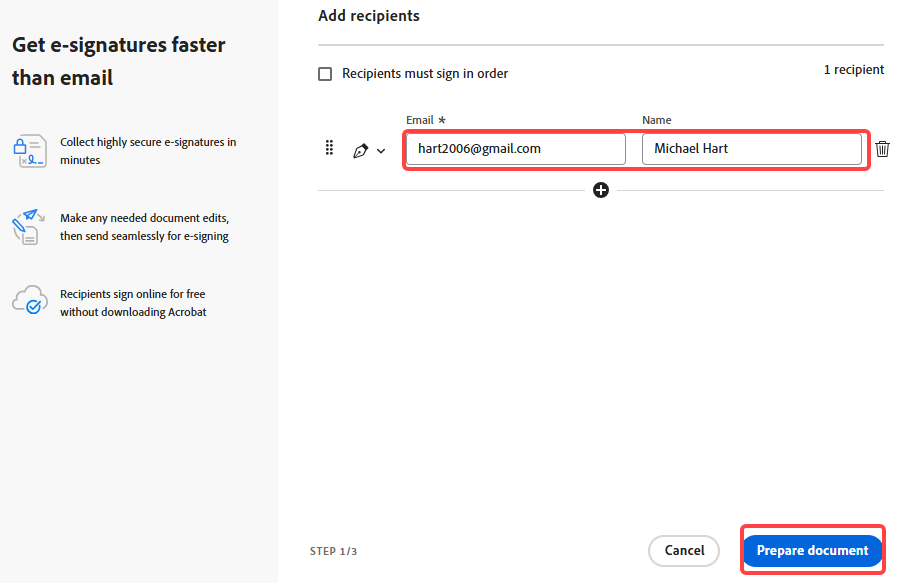
Enter the email address(es) and name of the recipient(s) who need to sign the document and then click Prepare Document
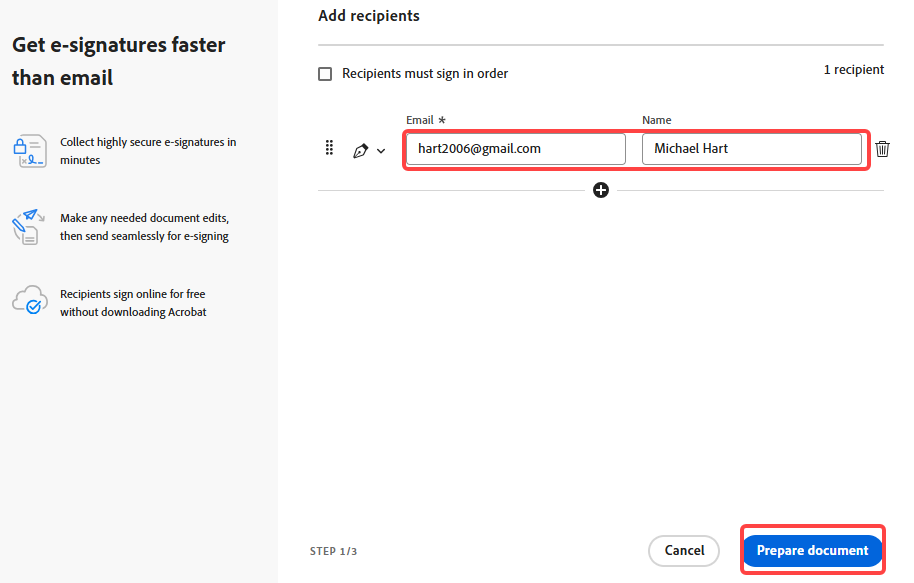
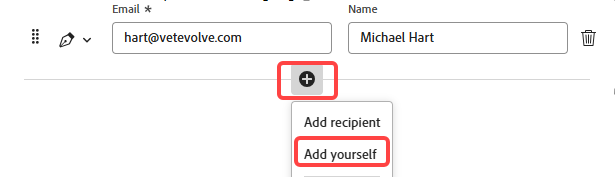
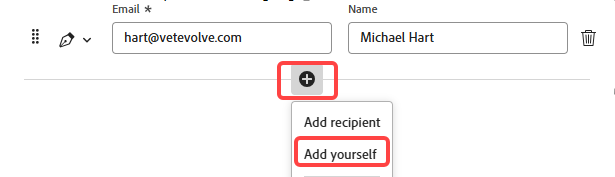
- Click the + button and Add yourself to the signing flow if needed
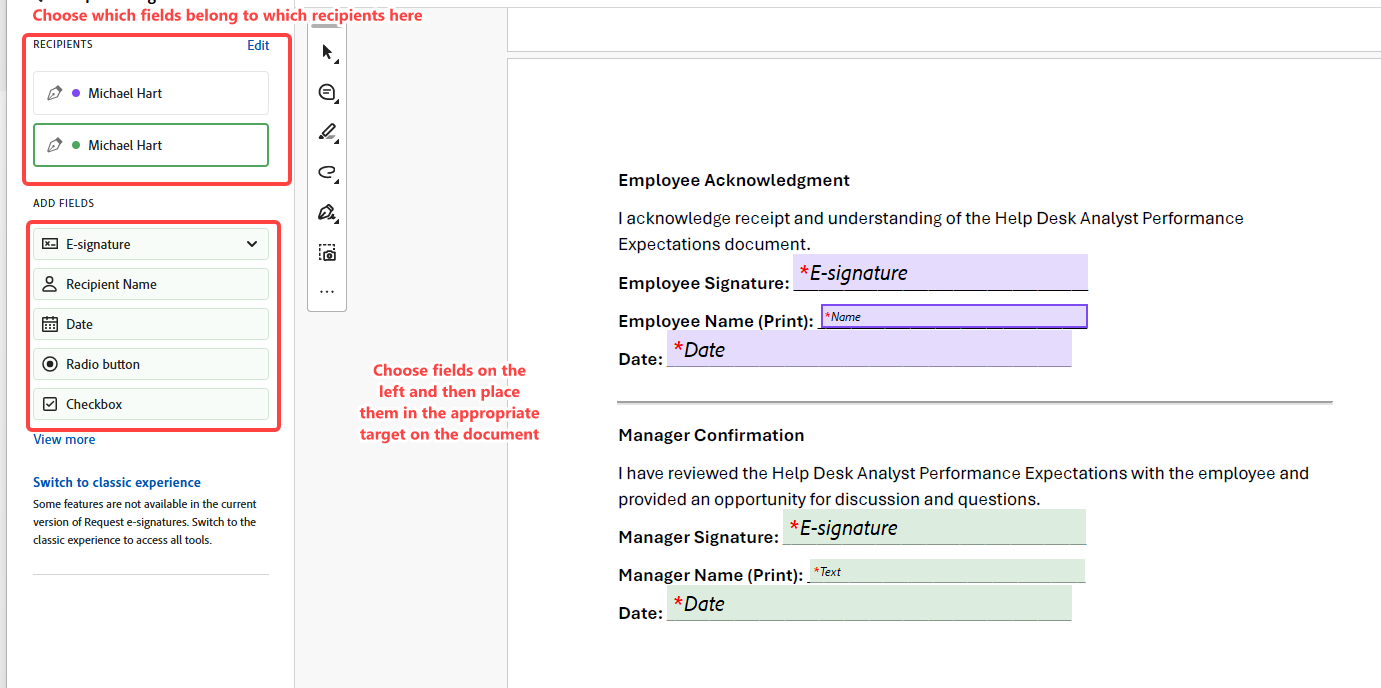
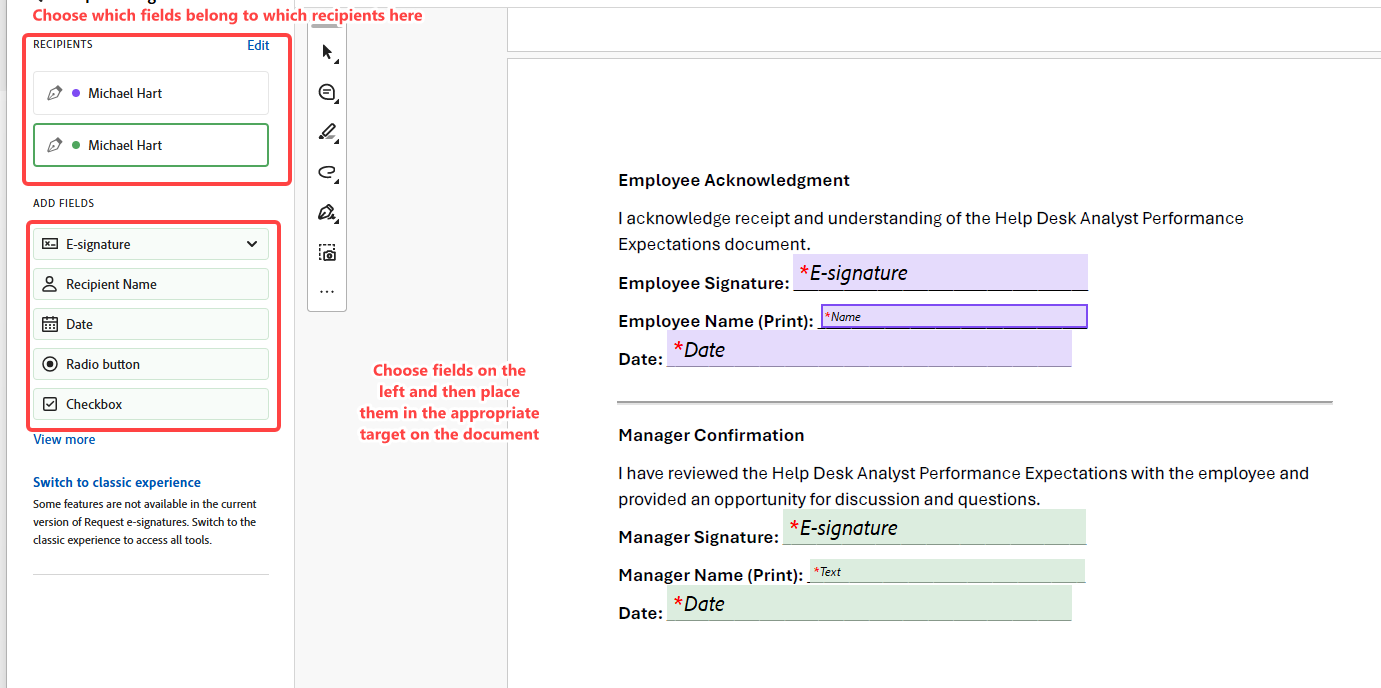
- Acrobat will open the document layout view. Click in the left to choose a field and then place interactive fields like Signature, Date, or Text onto the specific locations in your document. You can choose specific fields for specific recipients:
- Once done, click Review and Send in the lower left

-
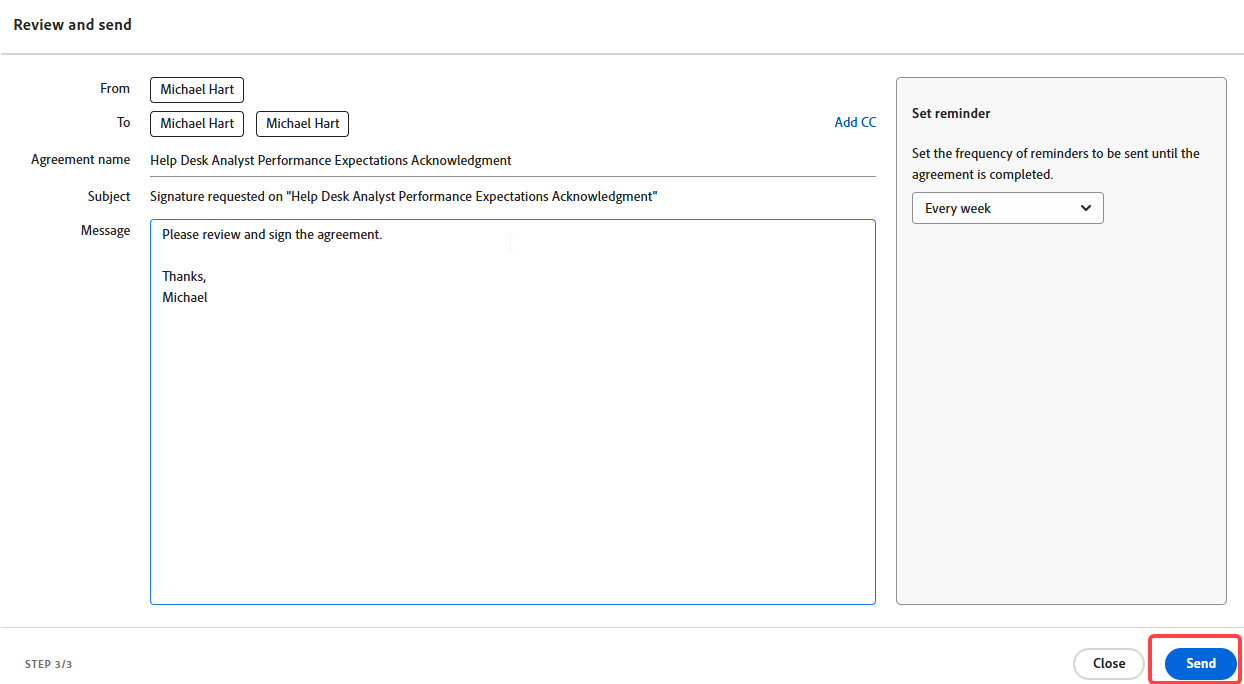
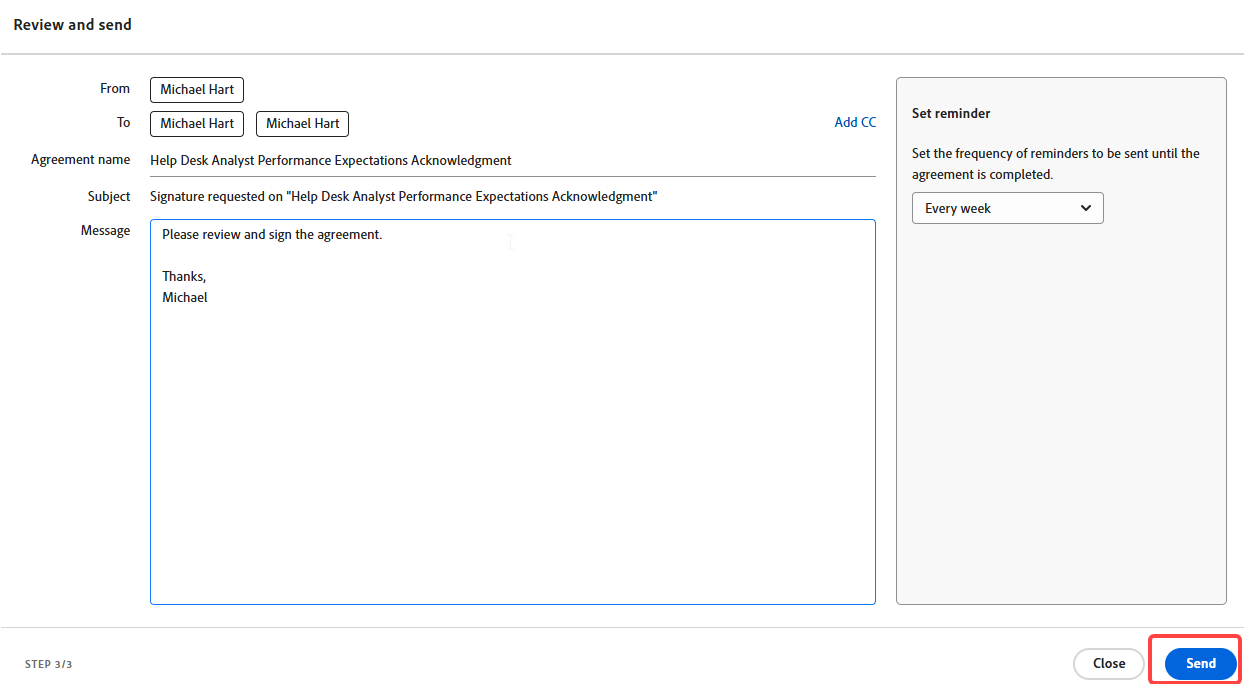
Review your settings, adjust as needed and then click Send to email the agreement for a legally binding electronic signature
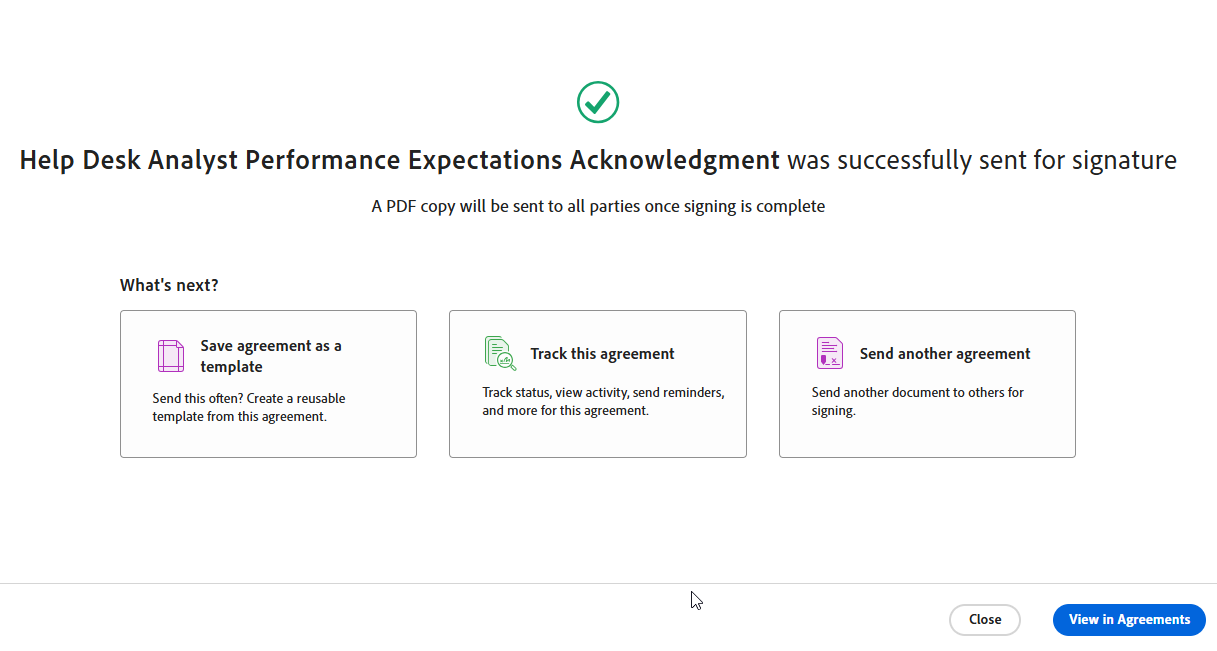
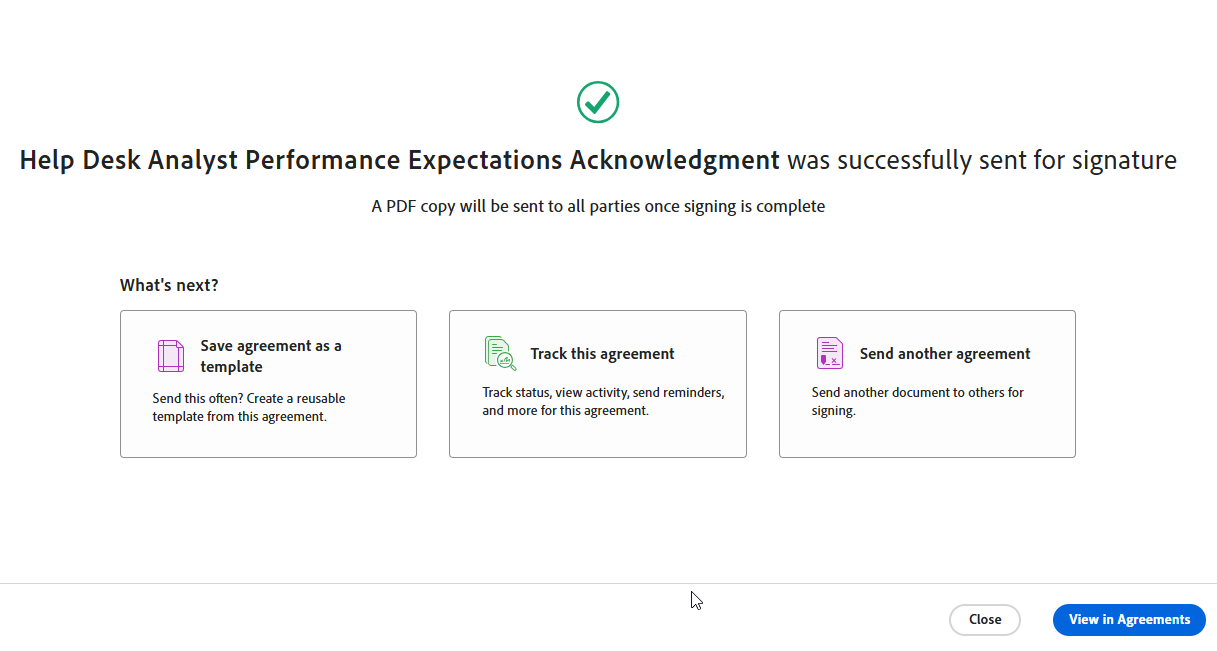
You will get an acknoledgement screen that says the document was sent for signature.
-
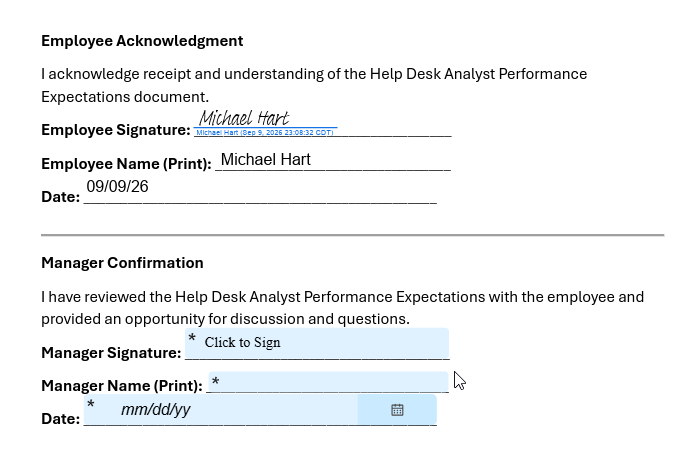
Recipients will get a web link to sign and fill out and fields.
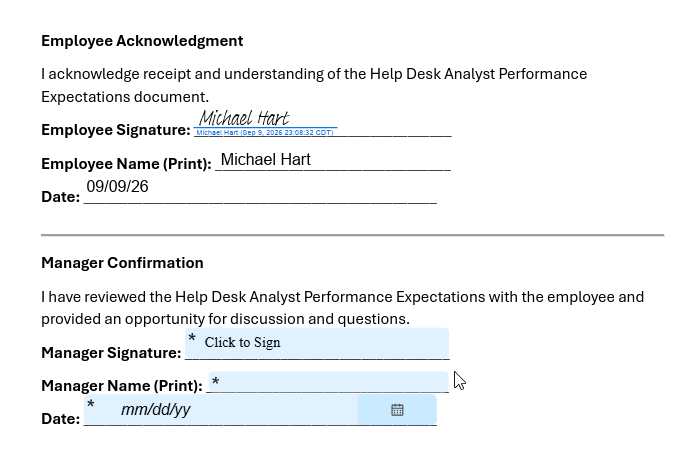
-
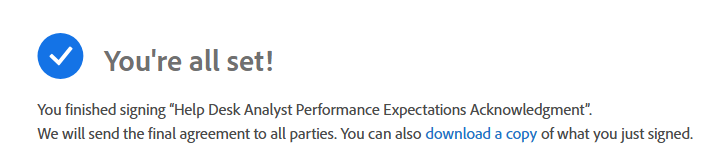
Once signed and completed, recipients will get a link to download the signed copy.
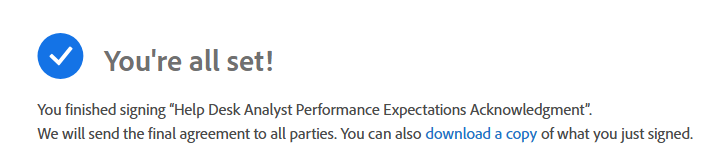
-
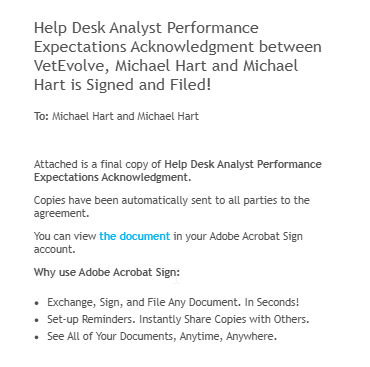
Additionally, recipients will get an email with a copy once all parties have signed
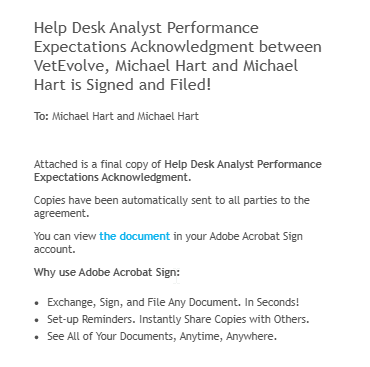
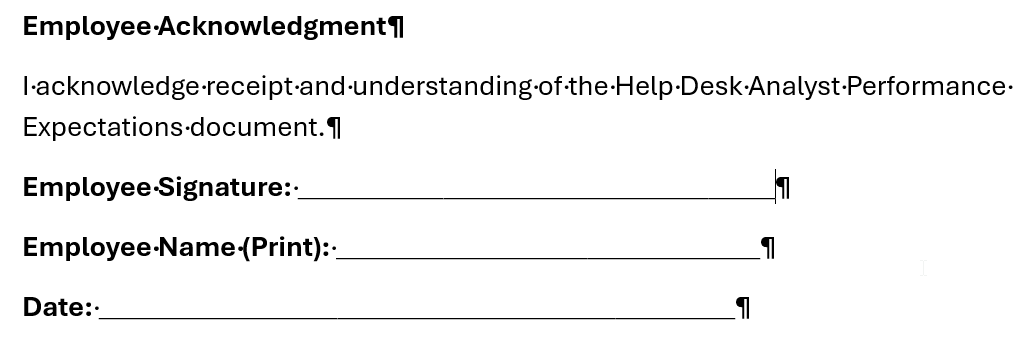

No Comments