
Connecting to a computer via the Splashtop Business App
You will get the best performance and full feature set if you use the Splashtop Business App. This requires an install on your computer using adminsitrative privileges - so you may need to open a ticket with Total Tech to get this installed.
Once you have the Business app running, make sure to use the Single Sign-On login option.
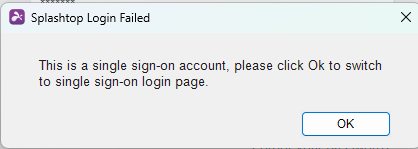
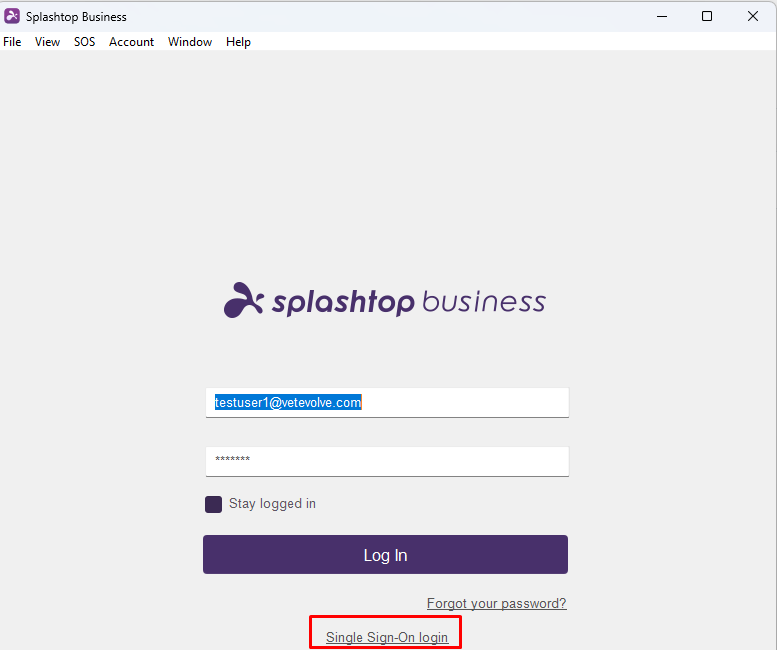
If you are logged into your Microsoft 365 account on a browser, it will authenticate and show you a screen similar to the following:
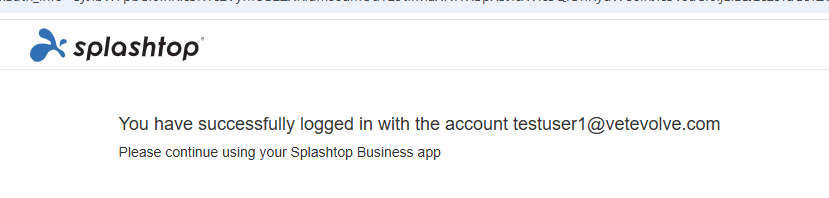
Otherwise you might be prompted to login to your Microsoft account.
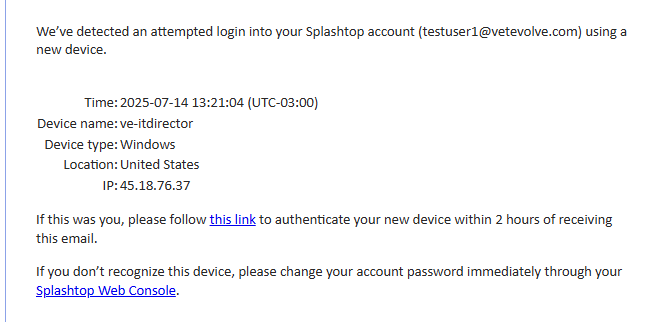
In you are logging in for the first time or from a new device, you may get a message you need to authenticate via email similar to the following:
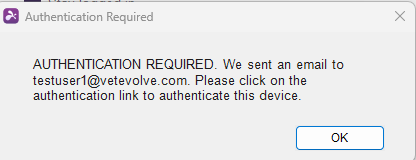
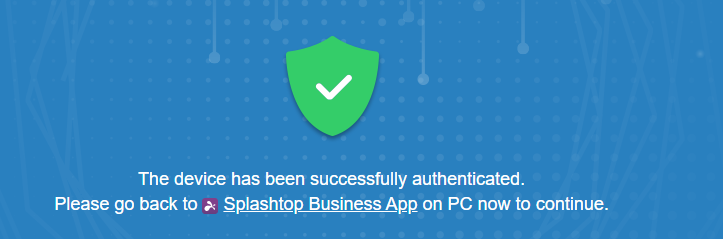
Go to you email and click on the link to authenticate. Once successfully authenticated, you will get a message similar to below:
Once successfully authenticated, you will get a message similar to below. Then you can click OK in your Business App
Once logged into your Business App you should see a list of computers you have access to and a menu and the top.
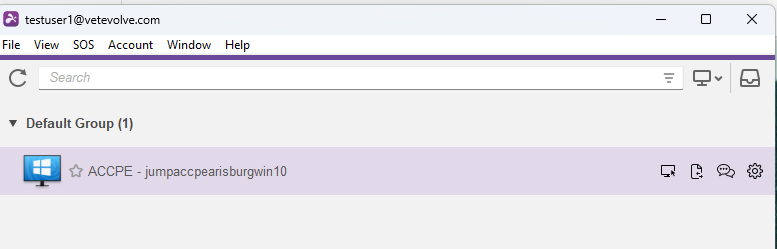
Double-click on the computer you want to connect to (or click the connect icon). This will open a remote connection window to the computer you are trying to access. Note that in the Business App you have more icons at the top for a richer experience

No Comments